
If Hydraflix is not loading on your iPhone, the problem may not be your internet connection. Safari can fail to display a website because of cached website data, JavaScript settings, content blockers, VPN configurations, iCloud Private Relay, DNS or network restrictions, or a problem on the website’s own server. The fastest way to identify the cause is to test the site systematically instead of repeatedly refreshing the same page.
This guide explains why Hydraflix is not loading on iPhone, what the different error messages usually mean, and which Safari and iPhone settings are worth checking first. The steps also apply to similar websites that appear stuck on a blank screen, keep refreshing, show a connection error, or never finish loading.
Why Is Hydraflix Not Loading on iPhone?
There are several possible reasons Hydraflix may fail to load on an iPhone:
- Hydraflix may be temporarily unavailable.
- Safari may have outdated or corrupted website data.
- JavaScript may be disabled.
- A VPN may be interfering with the connection.
- iCloud Private Relay may affect how the site identifies your IP address.
- A content blocker or Safari extension may prevent page resources from loading.
- Your Wi-Fi network or DNS configuration may be blocking the domain.
- The website may not be working correctly with Safari or a particular iOS version.
- The site’s server may be overloaded.
- The specific Hydraflix domain you are using may have changed, expired, or become unavailable.
The important distinction is this: if other websites load normally but Hydraflix does not, the problem is more likely specific to the site, browser configuration, or network path rather than your iPhone’s entire internet connection.
Apple’s current Safari troubleshooting guidance recommends testing another network, checking VPN settings, restarting the device, clearing Safari website data, enabling JavaScript, and checking iCloud Private Relay when only a particular website is affected.
Also Read: Watch Free Shows Like Hydraflix
First, Find Out Where the Problem Is
Before changing several settings, perform these three quick tests.
1. Open another website
Try a reliable website such as Apple’s website or another site you regularly use.
If several websites fail to load, your internet connection or iPhone network configuration may be the issue.
If everything else works and only Hydraflix fails, investigate the website, Safari settings, VPN, Private Relay, or network filtering.
2. Switch between Wi-Fi and mobile data
Turn off Wi-Fi and try opening the page over cellular data.
Then reconnect to Wi-Fi and test again.
Apple specifically recommends trying a different network when Safari cannot load a website.
This simple test can reveal an important clue:
| Result | Likely cause |
| Hydraflix works on mobile data but not Wi-Fi | Wi-Fi, router, DNS, or network filtering |
| Hydraflix works on Wi-Fi but not mobile data | Cellular network or carrier-related issue |
| Hydraflix fails on both | Website, Safari, VPN, Private Relay, or broader compatibility issue |
| Other websites also fail | General internet or iPhone network problem |
3. Try Safari Private Browsing
Open a Private Browsing tab in Safari and enter the website address again.
Private Browsing uses a separate browsing context and can help determine whether existing browsing data is contributing to the problem. Apple documents Private Browsing as a separate Safari mode on iPhone.
If Hydraflix works in Private Browsing but not in a normal tab, cached data, cookies, extensions, or website-specific settings become stronger suspects.
Also Read: Hydraflix VPN
Fix 1: Reload Hydraflix Completely
A simple reload is worth trying before changing your settings.
Close the problematic Safari tab, open a new tab, and enter the address again.
If the page partially loads, wait a few seconds rather than repeatedly tapping refresh. Repeated reloads can make it harder to tell whether the site is actually responding.
If the page remains completely blank, move to the next step.
Fix 2: Clear Safari Website Data
Corrupted or outdated website data can cause a page to behave incorrectly.
On current versions of iOS, Apple provides Safari data controls under:
Settings → Apps → Safari
You can use Clear History and Website Data to remove stored Safari browsing data. Apple also provides a more targeted option through Safari → Advanced → Website Data, where website data can be removed.
Why this can help?
Websites can store cookies, cached resources, sessions, and other local data. If the stored information becomes incompatible with the current version of a website, the browser may repeatedly load an old or broken state.
Clearing website data can also sign you out of websites, so use it with that expectation.
Fix 3: Make Sure JavaScript Is Enabled
Modern websites frequently depend on JavaScript to display menus, video interfaces, login systems, search functions, and dynamically loaded content.
Apple specifically recommends checking JavaScript when Safari cannot load a website correctly. The setting is located under:
Settings → Apps → Safari → Advanced → JavaScript
Make sure JavaScript is enabled.
If JavaScript was already enabled, leave it enabled and continue troubleshooting.
Fix 4: Temporarily Disable Your VPN
A VPN can change the IP address and network route that Safari uses to reach a website.
That can sometimes cause a website to:
- reject the connection,
- show a security challenge,
- load indefinitely,
- return a connection error,
- or serve a page that does not work correctly.
Apple explicitly notes that some websites may block content when a VPN is active.
If you use a VPN, temporarily disconnect it and test Hydraflix again.
Do not assume that changing to another VPN is automatically the solution. If the website is intentionally unavailable, changing VPN servers may not fix the underlying issue.
Also Read: Hydraflix Download
Fix 5: Check iCloud Private Relay
If you subscribe to iCloud+, your iPhone may use iCloud Private Relay for Safari traffic.
Private Relay is designed to improve privacy by routing Safari traffic through separate internet relays and hiding your IP address from websites.
That privacy mechanism can occasionally affect websites that depend on IP-based filtering, monitoring, or rate limiting.
Apple specifically says websites using IP filtering or rate limiting may not work correctly with Private Relay.
What to test?
On the affected website, Safari may provide an option to temporarily allow the site to see your IP address.
You can also check:
Settings → [your name] → iCloud → Private Relay
Apple also provides network-specific controls through Wi-Fi and cellular settings.
Treat this as a diagnostic test rather than a permanent recommendation. Private Relay is a privacy feature, so disabling it reduces the privacy protection it provides.
Fix 6: Check Safari Content Blockers and Extensions
Safari extensions can interfere with page elements, scripts, advertisements, cookies, pop-ups, or other resources.
Apple’s Safari documentation confirms that content blockers can prevent certain website resources from loading.
If you have an ad blocker or content blocker installed, temporarily disable it for testing.
Look under:
Settings → Apps → Safari → Extensions
Then test the site again.
If the page starts working after disabling an extension, you have identified a likely source of the problem.
You can then decide whether to leave the extension disabled for that website or adjust its settings.
Also Read: Is HydraFlix Legit?
Fix 7: Check Whether Cookies Are Being Blocked
Cookies are often necessary for login sessions and certain website functions.
Apple notes that blocking all cookies can prevent users from signing in and can cause some website features to stop working.
Check your Safari settings if you have changed cookie-related privacy options.
Avoid enabling aggressive privacy settings blindly. The objective is to identify which setting is causing the problem, not to permanently weaken your browser’s privacy protections.
Fix 8: Restart Your iPhone
It sounds basic, but restarting the device can clear temporary system and networking problems.
Apple includes restarting the iPhone among its recommended troubleshooting steps when Safari does not load websites correctly.
After restarting:
- Open Safari.
- Open a fresh tab.
- Test another website.
- Test Hydraflix.
- Compare the result with your previous test.
If Hydraflix still does not load while other websites work normally, continue to the network checks.
Fix 9: Test a Different Network
This is one of the most useful diagnostic steps.
Suppose Hydraflix does not load on your home Wi-Fi but loads on mobile data. That strongly suggests the problem is connected to the Wi-Fi network, router, DNS configuration, or network-level filtering.
The reverse is also useful.
Example troubleshooting scenario
Imagine this:
- YouTube loads normally.
- Google loads normally.
- Other websites load normally.
- Hydraflix fails on Wi-Fi.
- Hydraflix loads when Wi-Fi is disabled.
That pattern points away from a general iPhone failure.
Instead, investigate the Wi-Fi connection, router configuration, DNS, filtering, or ISP-level access.
If the site fails across multiple independent networks and devices, the website itself becomes a much stronger suspect.
Fix 10: Check Whether the Problem Is on Hydraflix’s Side
Not every loading problem can be fixed from your iPhone.
A website can become unavailable because of:
- server downtime,
- domain problems,
- DNS failures,
- hosting problems,
- traffic spikes,
- expired infrastructure,
- maintenance,
- geographic restrictions,
- or changes to the site’s web application.
This is particularly important with third-party streaming websites because their domains and infrastructure can change more frequently than established services.
If Hydraflix fails on:
- your iPhone,
- another phone,
- another browser,
- another network,
then repeatedly changing Safari settings probably will not solve the problem.
At that point, wait for the service to recover or use a legitimate streaming service that is officially available in your region.
Also Read: HydraFlix Proxy
Hydraflix Not Loading vs. Hydraflix Loading but Not Playing
These are different problems.
Hydraflix does not open at all
Possible causes include:
- DNS failure
- server outage
- blocked domain
- VPN conflict
- Private Relay interaction
- network filtering
- Safari configuration
Hydraflix opens but videos do not play
Possible causes include:
- JavaScript problems
- blocked scripts
- unsupported video technology
- browser compatibility
- content blocker interference
- network instability
- problems with the site’s video server
Hydraflix opens but keeps buffering
Look more closely at:
- connection speed,
- network congestion,
- Wi-Fi signal,
- cellular signal,
- server-side load,
- video quality,
- and the site’s streaming infrastructure.
Clearing Safari data will not magically increase your internet bandwidth. It only addresses browser-side data problems.
What Does a Blank White Screen Mean?
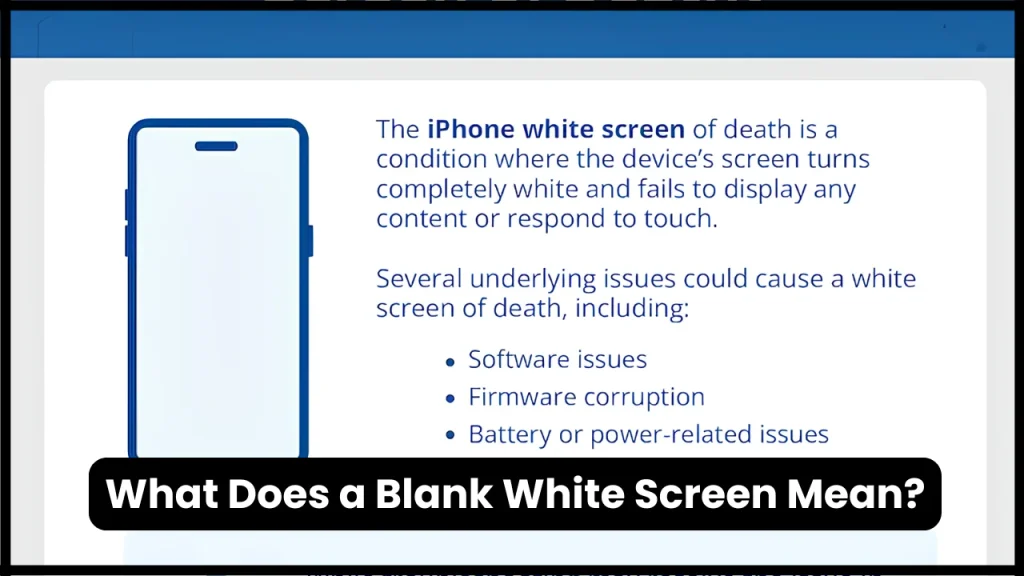
A blank screen usually indicates that the browser received enough information to begin displaying a page but did not successfully render the expected content.
Potential causes include:
- JavaScript failure
- blocked scripts
- incompatible website code
- corrupted cached resources
- failed API requests
- content blocker interference
- server-side application errors
That is why checking JavaScript, Safari website data, extensions, and network conditions is more useful than simply refreshing the page repeatedly.
Also Read: Is HydraFlix Safe to Use?
What If Safari Says “Cannot Open the Page”?
A message such as “Safari cannot open the page” usually points toward a connection, DNS, server, certificate, or network problem.
Start with:
- Test another website.
- Switch from Wi-Fi to cellular data.
- Temporarily disconnect a VPN.
- Restart the iPhone.
- Check Safari website data.
- Check Private Relay if you use iCloud+.
- Try again later if the problem appears specific to Hydraflix.
Apple recommends switching networks, checking VPN settings, restarting the device, clearing website data, enabling JavaScript, and checking Private Relay for site-specific Safari failures.
What If Hydraflix Works on Android but Not iPhone?
This does not automatically mean that your iPhone is defective.
Different browsers and operating systems can handle:
- JavaScript,
- cookies,
- privacy protections,
- media playback,
- redirects,
- content filtering,
- and website compatibility
differently.
If a website works on another device but not Safari, compare the environments rather than assuming the website is completely offline.
A useful test is to compare:
iPhone Safari → iPhone another browser → another device → different network
The more controlled the comparison, the easier it is to isolate the cause.
Why Changing Browsers May Not Always Help?
On iPhone, browsers such as Chrome and Firefox use Apple’s WebKit framework for web browsing in many configurations, so switching browsers is not always equivalent to switching to a completely different browser engine.
That means changing from Safari to another iPhone browser may not eliminate every compatibility issue.
It can still be a useful diagnostic test, particularly for browser-specific settings, stored data, or extensions.
Also Read: Hydraflix Taken Down?
What Does a Blank White Screen Mean?
Be cautious.
If you encounter a website claiming to offer an official Hydraflix iPhone app, configuration profile, unknown certificate, or downloadable package, verify its legitimacy before installing anything.
Do not install an unknown configuration profile merely because a website says it is required to stream content.
Also avoid entering your Apple Account password, payment information, or other sensitive credentials into an unverified third-party streaming site.
For general iPhone security, Safari’s built-in security and privacy controls are preferable to installing unknown software simply to make one website work.
Is Hydraflix Safe to Use on an iPhone?
The fact that a website opens in Safari does not automatically mean that the website is trustworthy.
Third-party streaming websites can carry risks involving:
- intrusive advertising,
- misleading download buttons,
- deceptive redirects,
- tracking,
- malicious scripts,
- fake browser notifications,
- phishing pages,
- and unwanted software.
If Safari displays a security warning, do not bypass it simply because the page is familiar.
Safari includes protections designed to warn users about suspected fraudulent websites, and Apple’s current Safari documentation describes privacy and security controls for website access.
A safer approach is to use officially licensed streaming platforms available in your country.
Quick Fix Checklist for Hydraflix on iPhone
If you want the shortest troubleshooting path, use this order:
| Step | What to do | What it tells you |
| 1 | Open another website | Tests general internet access |
| 2 | Switch Wi-Fi to mobile data | Tests network-specific problems |
| 3 | Open a Private Browsing tab | Tests normal browsing data |
| 4 | Restart iPhone | Clears temporary system issues |
| 5 | Check JavaScript | Tests script-dependent pages |
| 6 | Clear Safari website data | Removes potentially corrupted stored data |
| 7 | Disable VPN temporarily | Tests VPN-related interference |
| 8 | Check Private Relay | Tests IP/routing compatibility |
| 9 | Disable Safari content blockers temporarily | Tests blocked resources |
| 10 | Test another device/network | Determines whether the website itself is the likely problem |
The Fastest Way to Diagnose the Problem
Rather than trying all ten fixes randomly, use this decision tree.
Does every other website work?
- No: troubleshoot your internet connection or iPhone network settings.
- Yes: continue.
Does Hydraflix work on mobile data?
- Yes: investigate Wi-Fi, DNS, router, or network filtering.
- No: continue.
Does it work in Safari Private Browsing?
- Yes: investigate Safari website data, cookies, extensions, or content blockers.
- No: continue.
Are you using a VPN or Private Relay?
- Yes: temporarily disable the relevant feature and test again.
- No: continue.
Does the site fail on another device and another network?
- Yes: the website or its infrastructure is more likely to be responsible.
- No: compare the working and non-working device/network configurations.
This approach gives you useful information after every test instead of changing several variables simultaneously.
Also Read: Hydra Movies Free
When You Should Stop Troubleshooting
If you have already:
- tested Wi-Fi and cellular data,
- restarted your iPhone,
- tested Safari Private Browsing,
- checked JavaScript,
- cleared website data,
- checked VPN settings,
- checked Private Relay,
- tested another device,
and Hydraflix still does not load, there may be nothing wrong with your iPhone.
If the problem occurs only with that website, Apple recommends contacting the website developer or site operator after the standard Safari troubleshooting steps have been exhausted.
At that point, waiting for the website to resolve its own server, DNS, compatibility, or availability problem is more sensible than repeatedly modifying your iPhone.
Frequently Asked Questions
Why is Hydraflix not loading on my iPhone?
The cause can be a Safari configuration problem, cached website data, JavaScript, VPN, iCloud Private Relay, content blocker, network restriction, or an issue with Hydraflix itself. Test another website and then switch between Wi-Fi and mobile data to narrow down the cause.
Why does Hydraflix work on Wi-Fi but not mobile data?
The difference suggests that the cellular connection, carrier network, DNS behavior, or mobile-data configuration may be affecting access. Testing another website on mobile data can help determine whether the issue is Hydraflix-specific.
Why does Hydraflix keep loading on Safari?
A page that continuously loads can result from blocked scripts, JavaScript problems, corrupted website data, network problems, Private Relay, VPN interference, or a server-side issue.
Can clearing Safari cache fix Hydraflix?
It can if outdated or corrupted website data is causing the page to malfunction. Apple provides Safari controls for clearing history and website data on iPhone.
Should I turn off JavaScript on my iPhone?
No. If a website requires JavaScript, disabling it can prevent important page functionality from working. Apple recommends checking that JavaScript is enabled when Safari cannot properly load a website.
Can a VPN stop Hydraflix from loading?
Yes. A VPN can change your network route and IP address, and some websites may restrict or interfere with connections coming through VPN services. Apple specifically recommends checking VPN settings when Safari cannot load a website.
Can iCloud Private Relay cause website loading problems?
It can in some circumstances. Websites that depend on IP filtering, monitoring, or rate limiting may behave differently when Private Relay is active. Apple provides a temporary option to allow a website to see your IP address.
Why does Hydraflix work on another phone but not my iPhone?
The two devices may have different browser settings, cached data, privacy features, VPN configurations, network connections, or operating-system behavior. Compare them systematically rather than assuming the iPhone itself is faulty.
Why does Hydraflix open but the video does not play?
The website may be loading correctly while its video player is failing. JavaScript, content blockers, browser compatibility, network quality, or the site’s video server can all contribute.
Is Hydraflix an official streaming service?
Do not assume that a website using the Hydraflix name is an official or licensed streaming service. Verify the site’s ownership, licensing claims, and security before providing personal information or installing software.
What is the quickest fix for Hydraflix not loading on iPhone?
Start by switching from Wi-Fi to mobile data, then try Safari Private Browsing. If the problem continues, check JavaScript, Safari website data, VPN settings, Private Relay, and content blockers. If the site fails across multiple devices and networks, the problem may be on the website’s side.
Also Read: HD Hydra TV Shows
Conclusion
If Hydraflix is not loading on your iPhone, do not immediately assume that your phone is broken. Start by separating the problem into browser, network, privacy, and server-side causes. Testing another network, clearing Safari data, checking JavaScript, reviewing VPN and Private Relay settings, and testing another device can quickly identify where the failure occurs. If Hydraflix fails everywhere, the issue is likely beyond your iPhone and requires the website itself to resolve.

Tasha Harshman is a versatile writer who explores a range of topics with a special focus on entertainment. She enjoys sharing clear, engaging insights about movies, celebrities, trends, and pop culture.